5 Ways to Download Spotify Music And Podcast from Source
If you want to download Spotify music and podcasts from the source, meaning the original files that you stream from Spotify. This can be useful if you want offline access to your favorite content, or if you want to edit or remix them for your own purposes.
There are a few ways to download Spotify music and podcasts from source, depending on what kind of content you are looking for and what tools you can access. Here are some of the options.
Disclaimer
The content of this article is for informational purposes only and does not constitute legal advice. The author is not a lawyer and does not endorse or recommend any of the products or services mentioned in this article.
Downloading music from Spotify may violate the terms of service and infringe the copyrights of the music owners. The author and the website are not responsible for any consequences that may arise from following the instructions in this article. Using some of these methods may cause your Spotify account suspended, so use them at your own risk.
Zotify - Terminal-Based Music and Podcast Downloader
Zotify is a tool that allows you to download music and podcasts from Spotify with high quality and customization options. To use Zotify, you need to have Python 3.9 or higher and FFmpeg installed on your system. You also need to create a credentials.json file with your login information for Spotify. You can find more details on how to do this on the Zotify GitHub page.
To download content with Zotify, you can use the command line interface or the graphical user interface. The command line interface lets you specify the URL of the content you want to download, or use different options to search for content, download your liked songs, playlists, followed artists, etc. You can also configure various settings such as output format, location, audio quality, lyrics, etc. using the config file or command line arguments. The graphical user interface provides a more user-friendly way to access the same features as the command line interface.
You can refer to the steps below to use it:
Step 1. Install Python 3.9 or higher and FFmpeg on your system. You can refer to this post to install Python and FFmpeg on Windows or Mac.
Step 2. Install Zotify by running this command in your terminal:
python3 -m pip install git+https://zotify.xyz/zotify/zotify.git
Step 3. Create a credentials.json file with your login information for the sources you want to download from. You can find an example file in the GitHub repository of Zotify.
Step 4. Run Zotify with the desired options and arguments. You can specify the output location, format, audio quality, lyrics, and more. You can also download from a URL, a file, a playlist, a liked songs list, a followed artists list, or a search query.
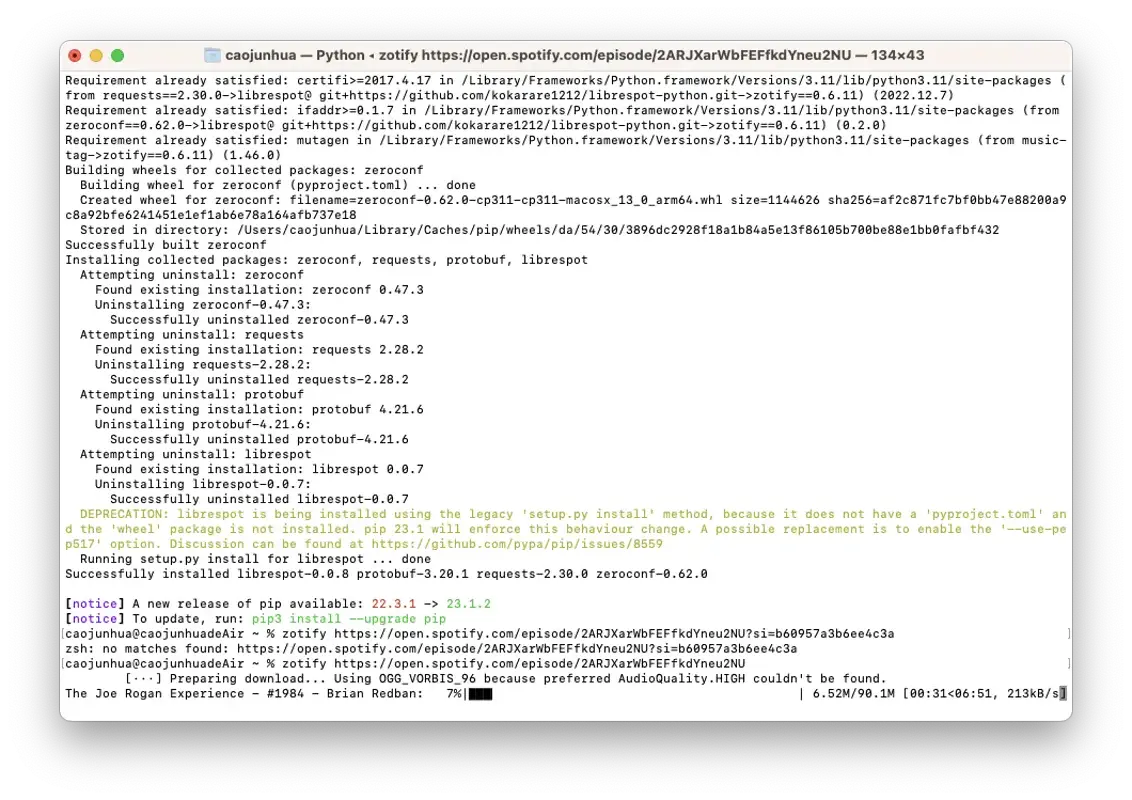
Note: When you copy the URL from Spotify App, remove the parameter as in the screenshot above.
Download Spotify Music and Podcast Online
DoubleDouble is a website that allows you to download music from various streaming services for free. You can choose from Spotify, Tidal, Qobuz, Soundcloud, Deezer, YouTube and Napster, and get the highest quality available for each service.
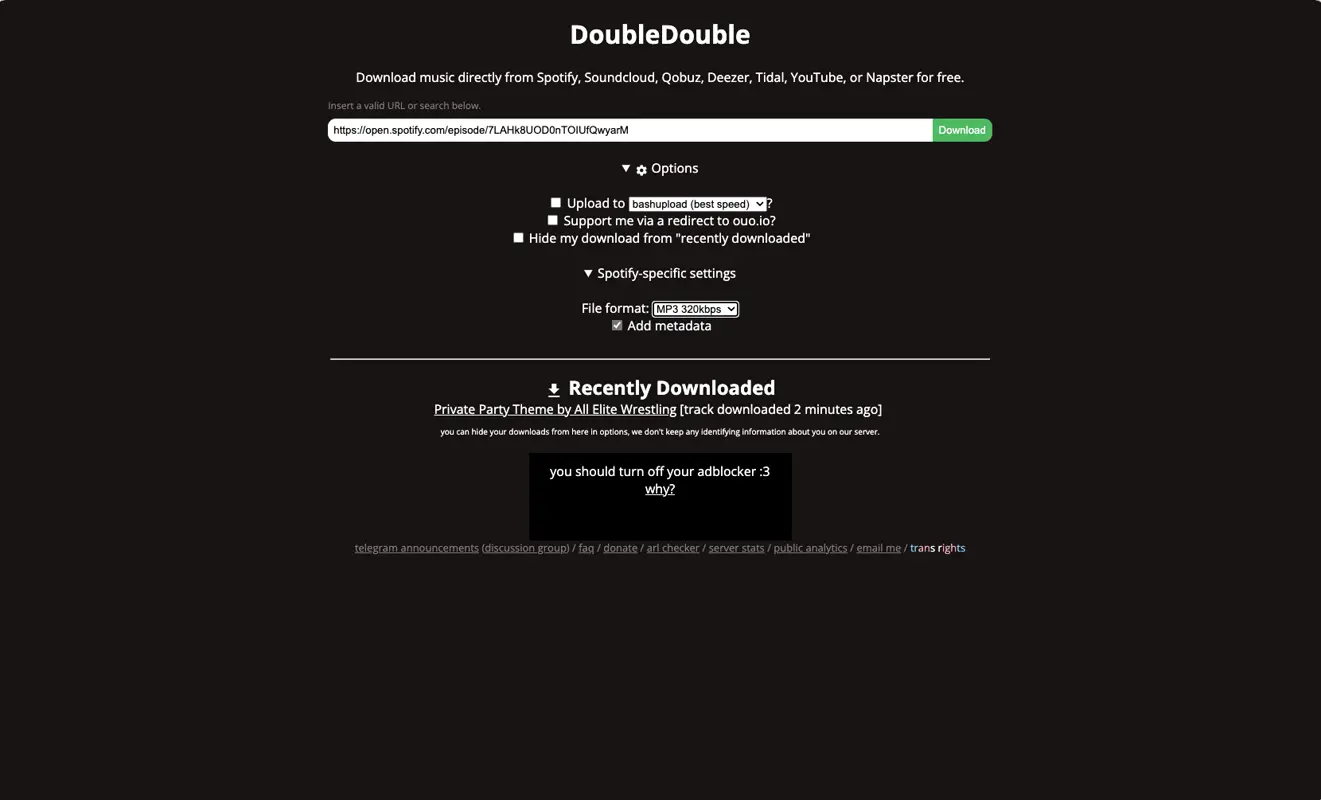
DoubleDouble does not store any personal information about you or your downloads, and you can hide your download history from the options menu. In Options, you can choose to download Spotify music and podcasts to OGG or MP3.
You can follow DoubleDouble on Telegram and Instagram for updates on the service and announcements. DoubleDouble is a fast, easy and convenient way to enjoy your favorite music offline.
Soggfy - Spotify Downloader for Windows
Soggfy is another music downloader mod for Windows Spotify client, just like ZSpotify. If you have Spotify Desktop app installed from Microsoft Store, be sure to uninstall it. You can refer to the steps to install and use Soggfy on Windows.
-
Download and extract the
.zippackage of the latest release -
Right click the
Install.ps1file, then select "Run with PowerShell". If it prompts about execution policy, press A to allow. Wait for it to finish. -
Run
Injector.exe, and wait for Spotify to open. -
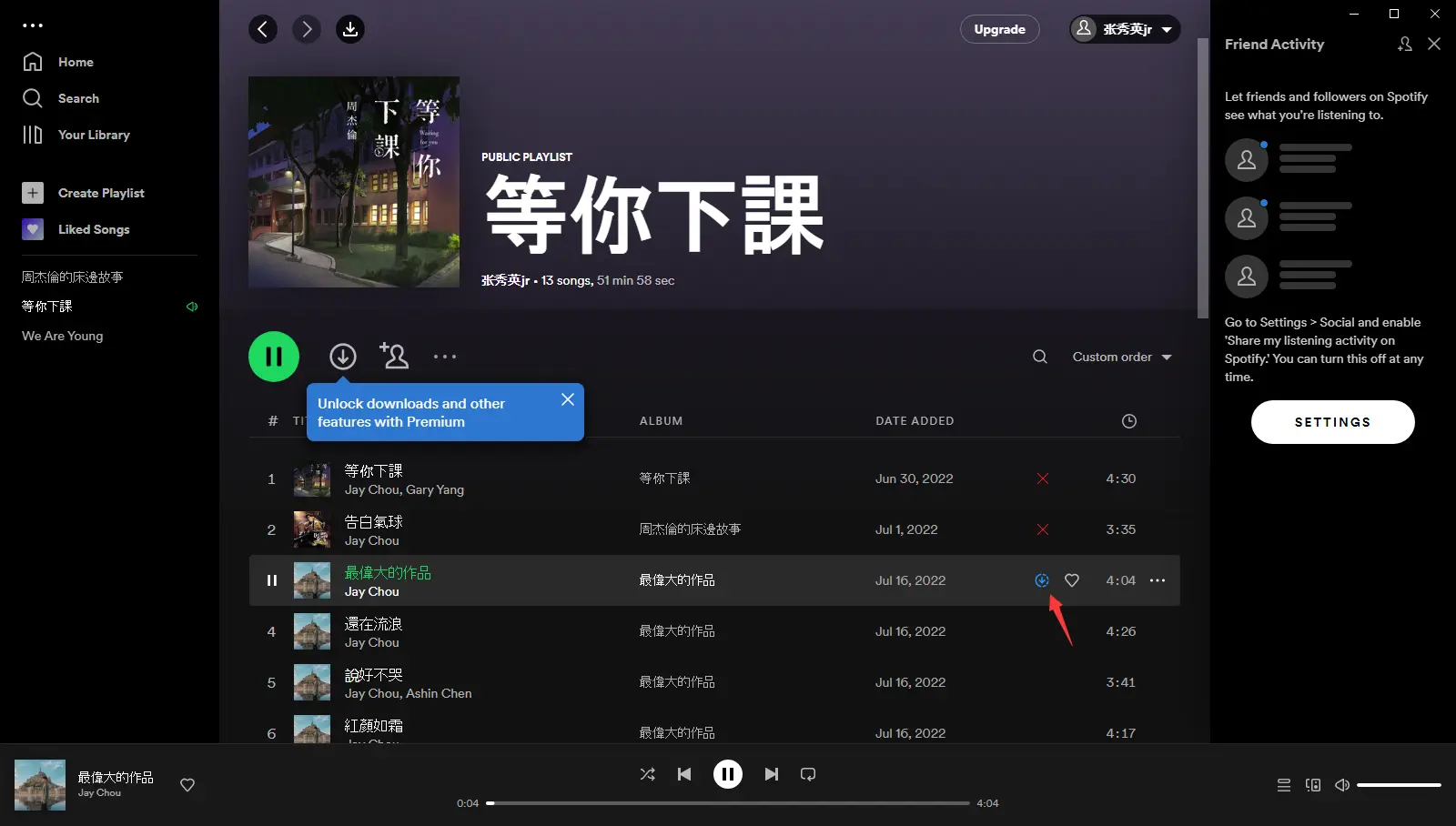
Play the songs you want to download from start to end without skipping.
-
Click on the download button in the navigation bar. Then you can select playback speed and save path.
Download Spotify Music or Podcast to Google Drive
Zspotifycolab is a Spotify Downloader that allows you to download Spotify content to Google Drive using Google Colab. It is a fork of ZSpotify, a Spotify downloader that only needs a python interpreter and ffmpeg. Here is a guide for using this tool:
-
Go to the project on GitHub and click on the "Open in Colab" button.
-
In the Colab notebook, run the first cell to install ZSpotify and ffmpeg.
-
Run the second cell to start ZSpotify and log in with your Spotify account. You can use a burner account if you are worried about getting banned by Spotify.
-
Run the third cell to enter your download options. You can choose to download liked songs, playlists, albums, artists or tracks by entering the corresponding number.
-
Enter the URL or name of the item you want to download and press Enter.
-
Wait for ZSpotify to download the songs to your Google Drive folder named "ZSpotify".
-
Enjoy your downloaded songs offline or transfer them to another device.
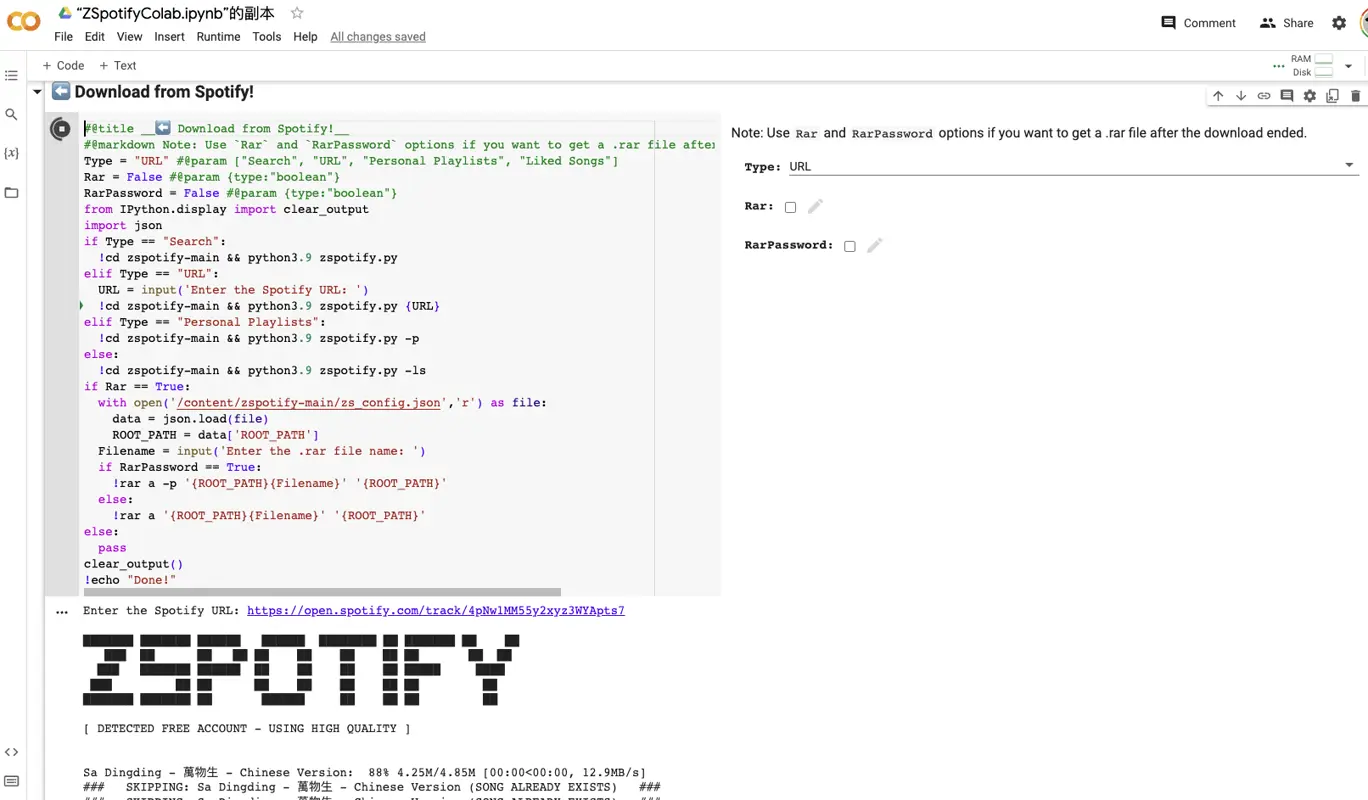
Note: If you see a message saying "Your session has been terminated", just try logging back in with your Spotify account. If you see an incorrect username or password error, reset your password and try again.
Telegram Bot
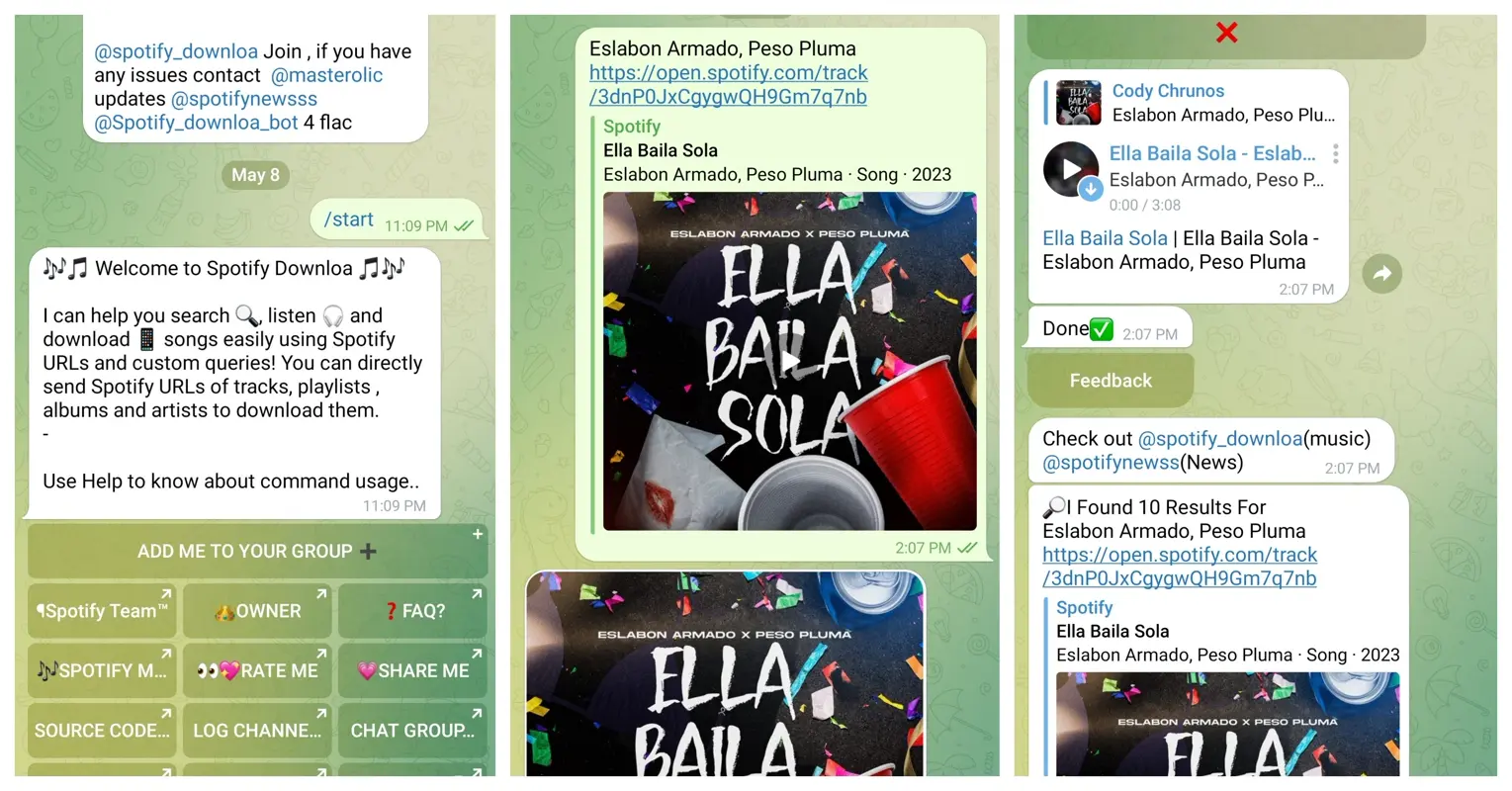
If you use Telegram, you can use a Telegram bot to download music from Spotify on Android or iPhone. With Telegram, search for @telegvc_bot to get this bot. It can help you search and download songs using Spotify URLs and custom queries. You can directly send Spotify URLs of tracks, playlists, albums, or artists to download them.
Conclusion
Downloading Spotify music and podcasts from the source can be challenging, but not impossible. Depending on what kind of content you are looking for and what tools you can access, you can get the original files from Spotify.